A USB hub can look dependable until a keyboard vanishes mid-typing or an external drive drops during a file transfer. Why does my USB hub disconnect randomly? The cause may be the hub, but it can also be a loose cable, an overloaded port, insufficient power, or a computer setting. Small details matter. A warm adapter, a bent connector, or several power-hungry devices can point toward different problems. Replacing the hub immediately may help, but it may also leave the real cause untouched.
This guide explains practical checks before comparing the 2026 best USB hubs. We’ll look at power delivery, data speeds, port selection, build quality, and compatibility with laptops and desktops. You’ll also find steps for narrowing down intermittent disconnects, such as testing one device at a time and connecting the hub directly to another computer port. Simple, but useful. Product specifications can describe limits; they cannot guarantee stable performance in every setup. A hub that works well with a mouse and keyboard may struggle when several drives draw power together. That distinction is easy to overlook. The right choice depends on your devices, cables, and daily workload—not just the number of ports. Some disconnects remain frustratingly difficult to reproduce, so careful testing is more reliable than guessing.
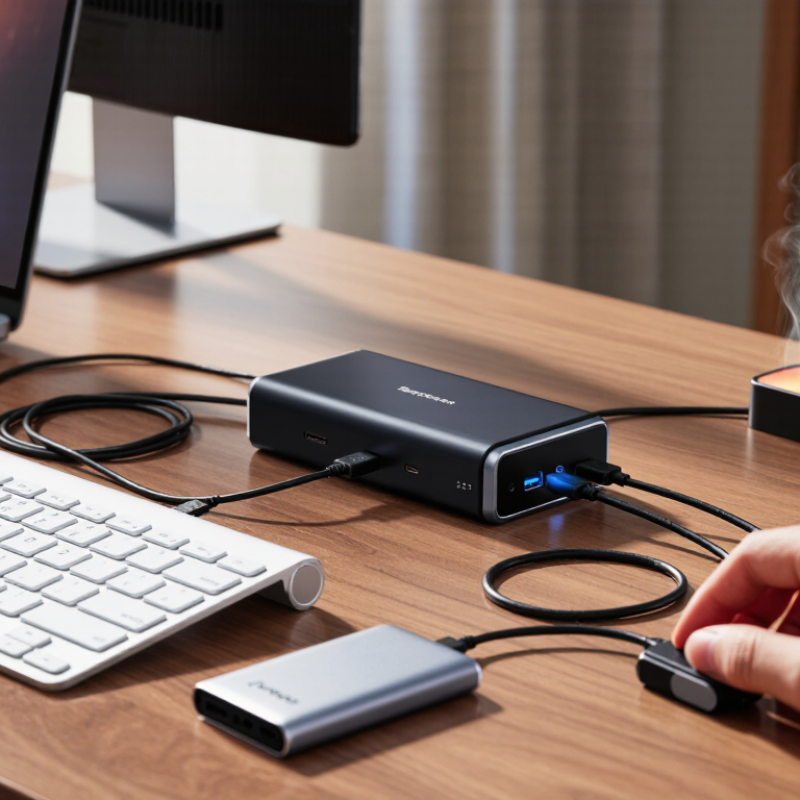
A USB hub expands one computer port into several, much like a small junction for data and power. Its upstream cable connects to the computer, while its downstream ports serve devices such as a keyboard, mouse, flash drive, or webcam. The computer remains in charge: it identifies each connected device and manages their communication. Simple, but important. A hub does not make every port equally powerful or equally fast.
Some hubs draw power from the computer; others use a separate adapter. A keyboard may work from a low-power port, while an external drive or webcam can need more stable power. If several demanding devices share one unpowered hub, connections may drop when activity rises. I have sometimes blamed the hub too quickly; a loose upstream cable or a device entering sleep mode can look similar. Check the cable at both ends, test one device at a time, and note whether disconnects happen during heavy use. That small test can reveal whether the issue follows a device, a port, or the hub itself.
A hub may disconnect when its upstream cable is loose, damaged, or stretched behind a desk. Even a slight bump can interrupt the connection. Power is another frequent cause: several drives, webcams, or other devices may draw more current than a bus-powered hub can supply. USB-IF’s USB Power Delivery 3.1 specification supports up to 240 W, but that figure applies only to compatible equipment; it does not describe the power available from every hub. It is tempting to blame the hub, but the cable or power adapter may be the real weak link.
Computer power management can also suspend an idle USB port, while heat or a heavily loaded connection may cause unstable operation. The USB-IF’s USB 3.2 specification defines signaling rates up to 20 Gbps, but a high-rated hub still depends on suitable cables and host ports. A fast specification is not proof of a stable setup. Check whether disconnections happen only when multiple devices are active, or when the cable moves. That pattern helps narrow the cause.
Random USB hub disconnects often come from power limits, weak cables, or a worn host port. Watch the timing. If a drive drops out when a webcam starts, power may be the issue. USB-IF specifications set standard downstream-port limits at 500 mA for USB 2.0 and 900 mA for USB 3.2. A bus-powered hub shares its available power across connected devices, so several peripherals can push it past a stable level. These figures come from USB-IF’s USB 2.0 and USB 3.2 specifications; they are not a guarantee that every hub delivers the full amount.
Test one change at a time. Unplug all devices, then reconnect them individually. Try a shorter, known-good data cable, and check for a loose fit or bent connector. Move the hub to another computer port, preferably without an adapter or extension. If the issue stops when the hub has its own power supply, that is a useful clue, not proof. Check your operating system’s device logs for disconnect times and compare them with heavy device activity. It is tempting to blame the hub too quickly; a failing port can produce the same symptoms. One test may mislead, so repeat it.
Compare common USB current ratings when checking whether a hub or connected devices may be exceeding the available power.
USB 2.0 and USB 3.x figures show standard downstream-port current limits. USB-C figures show 5 V Type-C source-current modes. These are reference ratings, not a guarantee of the power available from a particular hub; shared loads, cable quality, and the hub’s power supply can affect stability.
2026 Best USB Hubs: Why Does My USB Hub Disconnect Randomly?
Step-by-Step Fixes for a USB Hub That Keeps Disconnecting
A USB hub that disconnects repeatedly can interrupt file transfers or make a keyboard vanish mid-typing. Start with the simplest checks. Unplug the hub, inspect its cable for bends or loose connectors, then reconnect it firmly. Try another computer port. If the problem stops, the original port may be loose or unable to supply steady power. Small details matter.
Next, disconnect every device from the hub and reconnect them one at a time. A power-hungry external drive or several connected devices may overload an unpowered hub. If your hub has a power adapter, check that it is firmly plugged in. Test with a shorter, undamaged cable when possible. On a computer, check system settings for USB power-saving options, and install relevant operating-system updates. If the hub feels unusually hot, disconnect it and let it cool before testing again. That clue is easy to overlook.
Tips: Keep the hub on a hard, open surface, not under papers or against a warm laptop vent. Test one change at a time and note which device triggers the dropout. If disconnections continue across different ports and computers, the hub or its cable may be failing. Replacing it may be more practical than guessing.
| Symptom | Likely Cause | How to Check | Step-by-Step Fix | What to Expect |
|---|---|---|---|---|
| Several devices disconnect at the same time, especially under load. | The hub or host port cannot provide enough power for the connected devices. | Disconnect high-power devices, then reconnect devices one at a time. Check whether the hub has a power input and whether its adapter is connected. | 1. Connect the hub’s supplied power adapter, if available. 2. Connect power-hungry devices directly to the computer or to a separately powered hub. 3. Test with only one device attached. |
If the devices stay connected when the load is reduced or external power is added, insufficient power was likely the cause. |
| A drive disconnects during large file transfers. | Unstable power, a poor cable connection, or a drive enclosure that draws more power during activity. | Try a different USB cable and port. Copy a small file first, then repeat the test with the hub’s other devices unplugged. | 1. Reseat both ends of the drive cable. 2. Use a short, undamaged cable rated for the device’s data speed. 3. Connect the drive directly to the computer or use a powered hub. |
A stable transfer with fewer devices or a direct connection points to a hub power, cable, or connection issue. |
| The hub disconnects when its cable is moved. | A loose connector, damaged cable, or worn port. | With the hub idle, gently move the cable near each connector. Look for a loose fit, bent plug, or visible cable damage. | 1. Reconnect the hub firmly. 2. Test another compatible cable if the cable is removable. 3. Try a different computer port. 4. Stop using a cable or port that is visibly damaged. |
If movement reliably triggers a disconnect, replacing the damaged cable or avoiding the faulty port is usually necessary. |
| Devices disconnect after the computer sleeps or wakes. | USB power-saving settings or a device driver that does not resume correctly. | Check whether the issue occurs only after sleep. Test the hub while the computer remains awake. | 1. Install current operating-system and device updates. 2. Review USB power-management settings and disable selective USB power saving temporarily for testing, if the operating system provides that option. 3. Restart the computer and test again. |
If the problem occurs only after sleep, power management or driver behavior is more likely than a failing device. |
| Only one device disconnects while other devices remain connected. | A device-specific cable, driver, connector, or power issue. | Connect the affected device directly to the computer. Then test another cable or another hub port. | 1. Check the device’s cable and connector. 2. Update or reinstall its driver when applicable. 3. Test the device on another computer. 4. Try a different hub port. |
If the device also disconnects when connected directly, the issue is more likely with that device or its cable than with the hub. |
| USB 3.x devices disconnect or behave erratically near wireless equipment. | Radio-frequency interference, cable placement, or a connection problem. | Move the hub and its cables away from wireless receivers and other nearby electronics. Test the device in a different location. | 1. Separate the hub from wireless receivers and their antennas. 2. Reroute cables away from power adapters where practical. 3. Test a different port and cable. |
If relocating the hub improves stability, interference or cable placement may be contributing to the issue. |
| All devices disconnect after connecting a new accessory. | The added accessory may exceed the available power budget or trigger a hub compatibility issue. | Remove the newly added accessory and check whether the existing devices reconnect and remain stable. | 1. Unplug the new accessory. 2. Reconnect it directly to the computer or to a powered hub. 3. Add devices back one at a time to identify the trigger. |
If removing one accessory restores stability, keep it on a separate or adequately powered connection. |
| The hub gets unusually warm and disconnects intermittently. | Insufficient ventilation, a failing power adapter, or an electrical fault. | Check whether the hub is covered, placed on a soft surface, or unusually hot to the touch. Inspect the adapter and cable for damage. | 1. Disconnect the hub and let it cool. 2. Place it on a hard, ventilated surface. 3. Use only a compatible power adapter recommended for the hub. 4. Stop using it if it smells burnt or shows visible damage. |
Improved ventilation may help with heat-related instability. Persistent overheating or damage warrants replacement. |
| Disconnects continue after basic troubleshooting. | A faulty hub, host port, adapter, or operating-system configuration. | Test the hub with one known-working device on another computer, and test the original computer with a different hub or direct connection. | 1. Restart the computer. 2. Test another host port and a known-good cable. 3. Check for operating-system updates. 4. Replace the hub if it fails across multiple computers and cables. |
Testing one component at a time helps identify whether the hub, computer port, cable, or device is responsible. |
Choosing a reliable USB hub in 2026 starts with matching its power supply to the devices you use. A bus-powered hub may struggle when several devices draw power together. For external drives or webcams, check the hub’s rated output and use its included power adapter when available. Small clues matter. A loose upstream cable or a crowded port can trigger brief dropouts. USB-IF’s published USB Type-C specification rates the connector for 10,000 mating cycles. That measures connector durability, not the reliability of an entire hub.
Bandwidth matters, too. USB-IF specifies a 5 Gbit/s signaling rate for USB 3.2 Gen 1, but connected devices share the hub’s upstream connection. Don’t assume every port can deliver its advertised peak at once. Try the hub with one device, then add others; note whether disconnects begin under load. Check your computer’s power-saving settings and the hub’s cable before replacing equipment. Even then, diagnosis is not foolproof. A hub can pass a quick test and still falter during long transfers, so test it with your real setup before relying on it daily.
A loose upstream cable, limited power, heat, or computer power management can interrupt the connection. Tiny movements matter.
Check for bends or loose connectors. Try a short, undamaged cable and see whether moving it still causes dropouts.
Yes. Several devices, especially external drives, may draw more power than an unpowered hub can provide. Test one device at a time.
If the hub supports one, connect its adapter securely. Then reconnect devices individually and watch for changes.
Try another port. If the hub works there, the original port may be loose or unable to provide steady power.
Yes. Review your computer’s USB power-saving settings. Changing them may help, though it can increase power use.
Disconnect it and let it cool. Place it on a hard, open surface, away from papers and warm vents.
If it disconnects across different ports and computers, the hub or cable may be failing. I might blame the hub too quickly, though. Test the cable first.
This article explains how a USB hub connects multiple devices to a computer and why its power supply, cable, ports, and connected devices can affect stability. It explores the question “Why does my USB hub disconnect randomly” by covering common causes, including insufficient power, loose or damaged connections, overloaded ports, and compatibility issues. Readers will learn how to check whether the problem comes from the hub, its cable, the computer’s USB port, or a connected device.
The guide also offers practical, step-by-step fixes, such as reconnecting devices, testing different ports and cables, reducing the number of connected devices, and checking power settings. Finally, it outlines what to look for when choosing a reliable USB hub in 2026, including suitable power capacity, dependable connections, and enough ports for everyday needs.

RF-Core Charger