Multi-port docks promise a tidy desk and fewer chargers, but they do not guarantee faster charging. A phone connected beside a laptop may receive less power when the dock divides its available output. The adapter, cable, port rating, and device charging limit all matter. One weak link can slow the whole setup. Small details count.
This guide explores How to improve charging speed on a multi-port dock through practical checks rather than vague promises. You will learn how to read the dock’s power specifications, choose a suitable power adapter, identify ports with higher output, and use cables rated for the required wattage. We will also cover power sharing, device settings, and heat, since warm equipment may reduce charging performance. Check the manufacturer’s limits before changing your setup. A larger adapter alone may not help if the dock has a fixed output ceiling. I have seen that assumption trip people up.
The best result is usually a balanced setup: connect high-demand devices to appropriate ports, avoid unnecessary loads, and test one change at a time. Charging speed varies by device, battery level, and temperature, so results will not always match the label. That can be frustrating. Still, a few careful measurements—such as comparing charging time with other devices unplugged—can reveal where power is being lost and which adjustment is worth making.
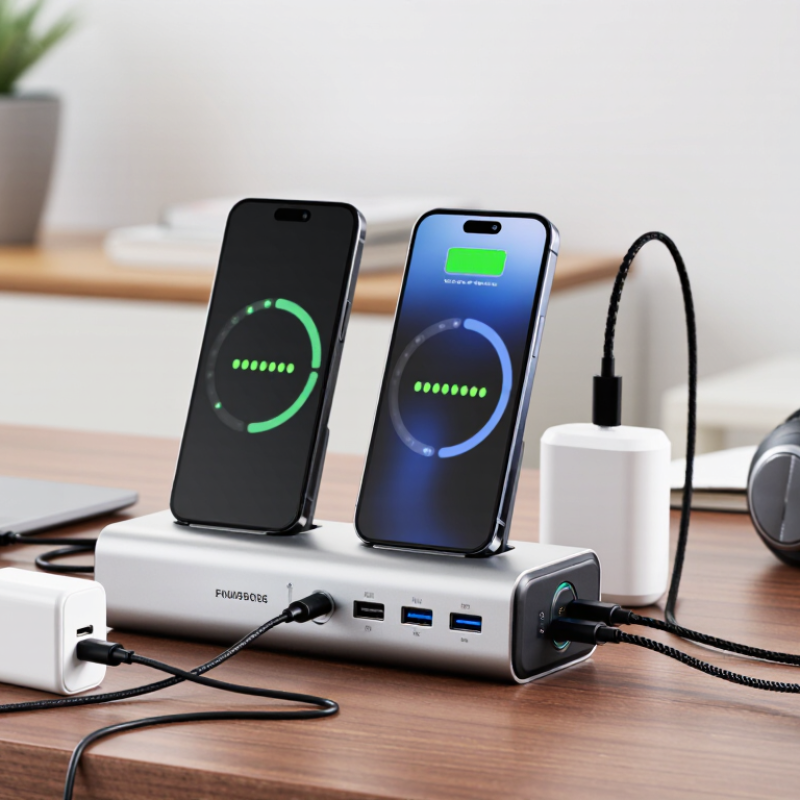
A multi-port dock does not give every socket its maximum rating at once. Its power supply has a fixed budget, shared between connected devices and the dock itself. When you plug in a laptop, the dock may reserve most available power for it, leaving less for a phone or tablet. The exact split depends on the dock’s design and charging rules.
USB-IF’s USB Power Delivery 3.1 specification raised the maximum supported power from 100 watts to 240 watts with Extended Power Range. That is a ceiling for compatible equipment, not a promise that each port receives that amount. A dock rated at 100 watts, for example, may provide 85 watts to a laptop while assigning smaller amounts to other ports. Some docks also adjust allocations as devices connect or disconnect. It gets messy.
Device requests matter, too. A phone drawing 18 watts cannot use a port’s full 30-watt capability; the unused capacity may be reassigned, or simply remain unused. Check the dock’s power table, especially its “single-port” and “multiple-port” figures. Also check whether the laptop’s port shares power with USB accessories. A small detail, but easy to miss. Test your own setup with the laptop under load and the other devices connected; published ratings describe supported limits, not every real-world combination.
A dock’s power label is only the starting point. Check the supplied adapter’s wattage, then find the dock’s maximum total output and each port’s limit in its manual. These figures are not interchangeable. A 100-watt adapter does not necessarily deliver 100 watts to connected devices; the dock itself uses some power, and charging power may be shared across ports. Check whether the listed capacity includes power sent to the laptop. This is easy to misread, even when the arithmetic seems obvious.
USB-IF’s USB Power Delivery 3.1 specification supports up to 240 watts over a compatible connection. That is a specification ceiling, not a promise that a dock or cable will reach it. Look for the dock’s supported charging profile, such as 20 volts at 3 amps, which equals 60 watts. Then confirm the cable supports that power level. A small USB-C power meter can show negotiated voltage and current; readings may change as devices fill their batteries or other ports become active.
Tips: Test with one device connected, then add devices one at a time. Note the wattage each time. If charging slows, compare the dock’s total output with the devices’ stated needs, and check for port-specific limits. A warm adapter is not proof of a fault, but unusually low readings deserve another check with a suitable cable and compatible charger.
| What to Check | How to Read It | Example or Key Fact | What to Do |
|---|---|---|---|
| Total dock output | Look for the dock’s maximum combined charging output in its specifications. This is the power budget shared across ports, not necessarily the output available from each port. | A dock rated for 100 W total cannot provide 100 W to every port at the same time. | Compare the combined power needs of connected devices with the dock’s total output rating. |
| Per-port output limit | Check the maximum output listed for each charging port. Individual port limits can be lower than the dock’s total rating. | A 100 W dock might have one port rated up to 65 W, with the remaining output allocated to other ports. | Connect the device that needs the most power to the port with the highest supported output. |
| Power adapter capacity | Check the adapter’s output rating and the dock’s required input. The dock cannot deliver more charging power than its design and power source allow. | If an adapter is below the dock’s recommended input rating, the available output may be reduced or some ports may be limited. | Use a compatible adapter that meets the dock’s specified input requirements. |
| Shared power when multiple devices are connected | Some docks redistribute power when devices are added or removed. The allocation depends on the dock’s design and may not be divided equally. | A device may receive less power when another high-demand device is connected, even if the dock’s total rating looks sufficient. | Disconnect devices that do not need charging, then check whether the charging rate improves. |
| USB Power Delivery support | Charging speed depends on compatible charging protocols and negotiated power between the dock and the device. | A port’s wattage rating alone does not guarantee that every device will charge at that rate. | Confirm that the dock and device support a compatible charging standard and power profile. |
| USB-C cable rating | The cable must support the current and power required by the charging setup. Some higher-power USB-C configurations require an electronically marked cable. | At 20 V, a 3 A connection carries up to 60 W; a compatible 5 A USB-C cable can support higher USB Power Delivery power, subject to the equipment’s limits. | Use a cable rated for the intended power level and replace damaged or unsuitable cables. |
| Device charging limit | A device draws power according to its own charging circuitry, battery condition, and supported input power. | A device designed to charge at 45 W will not charge at 65 W just because the dock’s port supports 65 W. | Check the device’s specifications and compare its maximum input with the dock’s port output. |
| Battery level and temperature | Charging power can vary as a battery fills or becomes warm. Many devices reduce charging power to manage battery temperature and charging behavior. | Charging may slow near a high battery level or when the device is warm, even with a suitable dock and cable. | Allow the device to cool and compare charging rates at similar battery levels. |
| Practical power check | Review the dock’s specifications, adapter label, cable rating, and device requirements. A USB-C power meter can help observe negotiated voltage and current. | Illustrative example: a 65 W device connected to a port capped at 45 W cannot receive more than that port’s limit. | Test one device at a time, then reconnect other devices to identify whether shared output is reducing power. |
Note: Actual charging speed depends on the dock, power adapter, cable, connected device, and operating conditions. Always verify the specifications for the specific equipment in use.
Top Ways to Improve Charging Speed on a Multi Port Dock
How to Prioritize Devices Across Charging Ports
A multi-port dock divides its available power among connected devices, so plugging everything in at once can slow charging. Check the dock’s total output and the maximum power listed for each port. These figures matter more than the number of ports. Give a high-priority port to a laptop or tablet with a low battery, and use lower-output ports for earbuds or a watch. A warm laptop already charging? It may need less attention than a nearly empty phone you plan to use soon.
Prioritize by urgency and power needs, not by habit. For example, charge a phone needed for navigation before topping up a spare accessory. If the dock reallocates power when devices are added, charging speeds may change. Watch the device’s charging indicator after connecting another cable. If speed drops, try moving the most important device to a higher-output port, or disconnect a device that can wait. I’ve found it easy to misread a port label, so check the dock’s instructions rather than guessing.
Tips: Use sound cables rated for the device’s charging needs. Leave some space around the dock for airflow. Rotate devices as their priorities change. Don’t expect every port to deliver maximum power at once.
A multi-port dock can charge slowly even when its adapter looks powerful. The key is matching the charger, cable, dock, and device—not just checking one wattage number. A dock’s advertised maximum may apply to one port, while power is shared when several devices are connected. Check the manual or label for the dock’s total input and per-port limits. Check the fine print. A laptop and phone charging together may leave less power for each than either device gets alone.
Choose a charger that meets the dock’s required input and supports a charging standard your devices can use. For USB-C, compare the charger’s Power Delivery output with the dock’s input requirements. A higher-wattage charger does not force extra power into a device; the connected equipment negotiates what it can accept. Use a cable rated for the needed power. Some higher-power USB-C cables require an electronic marker, so a thin, unmarked cable may limit charging. That matters.
Match the dock’s port to the device’s charging needs, and avoid assuming every port performs alike. A simple test helps: connect one device, note its charging rate, then add others and compare. Use the same battery level and similar screen activity for a fair check. If charging remains slow, try a known-good, properly rated cable and verify the charger’s output label. I still find cable ratings easy to overlook, especially when two cables look identical. The label is not exciting, but it can explain the difference.
Slow charging on a multi-port dock often comes from shared power, not a faulty port. The dock divides its available output among connected devices, and some models prioritize certain ports. Check the dock’s rated output and your device’s required input. The number printed beside a port may be a maximum, not a guaranteed rate. Try charging one device alone, then reconnect other devices one at a time. Watch the speed. This simple test can reveal whether the dock is reaching its power limit, though it does not explain every slowdown.
Next, check the cable, connector, and device temperature. A worn cable or loose plug can interrupt power delivery; a warm phone or laptop may also slow charging to manage heat. Use a cable rated for the power you need, and make sure it is seated firmly at both ends. Small details matter. If the dock has a power indicator, note whether it changes when you add a device. Compare charging times under similar conditions, since screen use and battery level affect results. I would not assume the dock is defective after one slow session; repeat the test with fewer connected devices and a cool device before drawing that conclusion.
How to reduce charging delays and diagnose slowdowns
Illustrative power-budget example: A 100 W adapter leaves 85 W for connected devices when the dock uses 15 W for its own operation. If three devices request 65 W, 30 W, and 20 W, the dock may limit the power available to each port. Actual power allocation depends on the dock, adapter, cable, and device.
No. The dock shares a fixed power budget between connected devices and its own operation. A laptop may receive most of it, leaving less for a phone. The exact split depends on the dock’s design.
It describes a supported ceiling, not a guarantee for every port. For example, a 100-watt dock might send 85 watts to a laptop and less elsewhere. Check the single-port and multi-port power figures.
Prioritize by urgency and power needs. A phone needed for navigation may matter more than spare earbuds. Give a low-battery laptop or tablet a higher-output port. Habits can mislead.
The dock may reallocate power among connected devices. Watch the charging indicator after adding a phone or tablet. If speed falls, move the priority device or unplug one that can wait.
No. A device draws only what it can use, such as 18 watts. Spare capacity may be reassigned or remain unused. It depends on the dock.
Charge one device alone, then reconnect other devices one at a time. Compare results under similar conditions. Keep screen use and battery level similar. This test helps, but it is not conclusive.
Inspect the cable and plugs for wear or looseness. Use a cable rated for the needed power, and seat both ends firmly. Heat can slow charging, too. Let the device cool.
Not necessarily. Repeat the test with fewer connected devices and a cool laptop or phone. Leave space around the dock for airflow. I might still miss something; charging behavior has several causes.
How to improve charging speed on a multi-port dock starts with understanding how the dock shares its available power. When several devices are connected, the dock may divide its power among ports, so check its total capacity and the output supported by each port. Connect devices that need more power to ports suited to their charging requirements, and avoid using every port at once if doing so reduces the power available to priority devices.
Compatible chargers and cables also matter: choose options that support the dock’s power specifications and the devices’ charging needs. If charging is still slow, disconnect devices that are not in use, check that cables and connections are secure, and test devices individually to identify a possible bottleneck. These steps can help you make better use of the dock’s available power and diagnose charging delays without assuming that every port provides the same performance.

RF-Core Charger