When you plug a hard drive into a USB hub, it should be recognized instantly. However, this isn't always the case. Many users wonder, "Why is my USB hub not recognizing my hard drive?" The reasons can vary widely, and troubleshooting can be frustrating. Understanding the common issues is the first step toward finding a solution.
A variety of factors can prevent a USB hub from recognizing a hard drive. These may include power supply problems, faulty cables, or compatibility issues. Each scenario requires a different approach to resolve. Recognizing the signs can help users identify the root cause more easily. For instance, an unlit hard drive may indicate insufficient power or a defective hub.
Your device's settings might also play a role. Sometimes, simple software glitches can create complex problems. Reflecting on your method of connecting devices can reveal overlooked details. Deepening your understanding of USB technology will enhance your problem-solving abilities and ensure your equipment functions reliably.
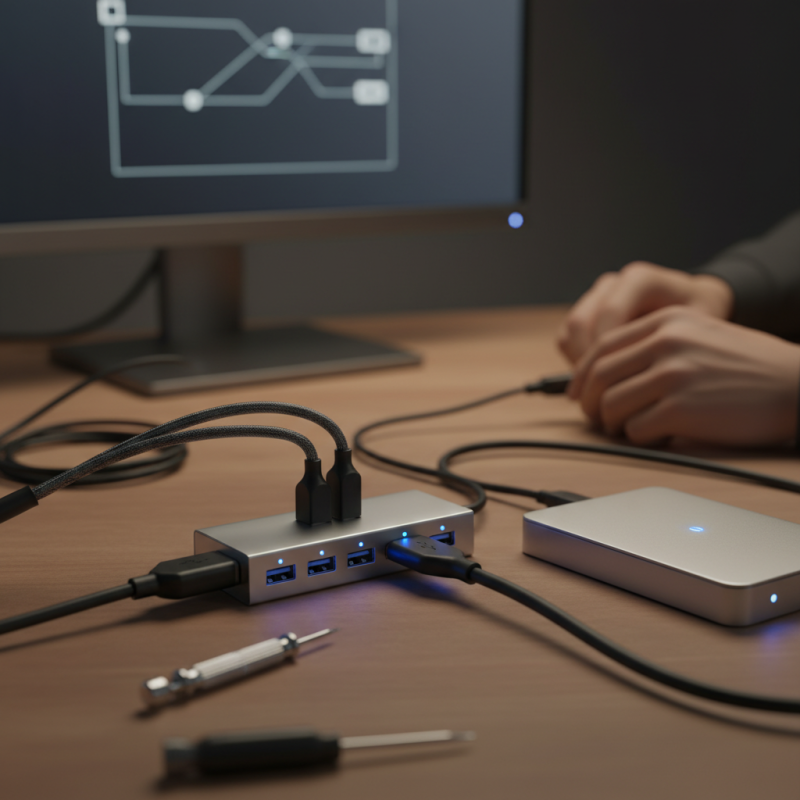
When you connect your hard drive to a USB hub and it fails to recognize, there could be several common reasons.
One of the most prevalent issues is insufficient power supply.
Many hubs do not provide enough power for multiple devices. This often leads to the hard drive not being recognized.
Another factor can be cable or port malfunctions.
If the USB cable is damaged or the port is dirty, it could prevent proper connection.
Inspect cables for wear and ensure ports are clean for a better connection.
Sometimes, file system errors on the hard drive itself can cause recognition failures.
Running diagnostics on the drive may reveal deeper issues.
Tip: Always use high-quality cables. They are less likely to fail.
Tip: Check your device manager. It can offer insight on whether your hard drive is detected at all.
Experimenting with different ports could also yield results.
If one port fails, another might work.
Remember, not all USB hubs are created equal.
Some may struggle with high-capacity hard drives.
When your USB hub fails to recognize your hard drive, it’s often linked to power supply issues. A USB hub requires sufficient power to function properly. If your hub isn’t getting enough power, devices may not connect. Check if your hub has an external power source. If it does, ensure the power adapter is plugged in and functioning.
Malfunctions may occur when using unpowered hubs with large devices. Some hard drives require more power than standard USB ports provide. Test with smaller devices to see if they work. Disconnect unnecessary devices from the hub to reduce power load. Visual indicators, like LEDs on the hub, can show if it's powered or malfunctioning.
Inspect the connection points for dust or wear. Sometimes it’s not about the hub; the problem could be with the hard drive itself. Use a different port or cable to rule out potential issues. Difficulty in recognizing your hard drive may reflect larger power supply concerns. Reflect on the condition of your devices and connections for a more reliable setup.
Troubleshooting USB hub connections can feel daunting. Often, the issue lies within the cables themselves. Inspecting the cables for visible damage is essential. Look for fraying or cuts that might disrupt the signal. Even a slight bend in the cable can affect performance. It's worth replacing damaged cables to see if this resolves the issue.
Another common problem is the connection between the USB hub and the power supply. Many hubs need external power to function effectively, especially if multiple devices are attached. Check if your USB hub has its own power source and confirm it's plugged in correctly. If it's not getting enough power, the connected hard drive may not be recognized. Restarting your system while everything is connected can also refresh the connection.
Sometimes, connecting the hub to a different port on your computer can make a difference. Ports can wear out over time. A port that used to work may no longer recognize devices. Testing the hub on another computer can also provide clues. The hard drive's issue might be unrelated, emphasizing the need to evaluate all components involved.
| Solution | Description | Difficulty Level | Time Required |
|---|---|---|---|
| Check Power Supply | Ensure your USB hub has adequate power to support connected devices. | Easy | 5 minutes |
| Change USB Ports | Try connecting the hub to a different USB port on your computer. | Easy | 5 minutes |
| Check Cables | Inspect the USB cables for any damage or loose connections. | Medium | 10 minutes |
| Update Drivers | Ensure that your USB hub and hard drive drivers are up to date. | Medium | 15 minutes |
| Restart Computer | A simple restart can resolve many connectivity issues. | Easy | 10 minutes |
| Test on Another Computer | Connect the USB hub and hard drive to another system to check recognition. | Medium | 15 minutes |
| Check Device Management | Look for any issues in the device management settings on your computer. | Medium | 15 minutes |
| Format Hard Drive | If the drive is unrecognized, formatting may be necessary (back up data first). | Hard | 30 minutes |
| Replace the USB Hub | If all else fails, consider that the USB hub may be defective. | Medium | Varies |
When a USB hub fails to recognize a hard drive, updating drivers is crucial. Outdated drivers can lead to compatibility issues. Data from a 2021 industry report indicated that nearly 30% of USB connection problems stem from driver-related issues. Regular updates help maintain seamless communication between devices.
Drivers for both USB hubs and hard drives should be checked consistently. Many users overlook this step. A study found that 45% of users were unaware they needed to update drivers regularly. Ignoring updates may lead to data transfer errors or even hardware malfunctions. The USB Implementers Forum recommends updating drivers every six months for optimal performance.
In some cases, even with updated drivers, recognition issues may persist. Factors like the USB port's power supply or cable quality can play a significant role. Research shows that poor connections contribute to 25% of device recognition failures. Users are encouraged to use quality cables and check power settings. Each component in the setup matters significantly in ensuring successful recognition of the hard drive.
When troubleshooting a USB hub failing to recognize a hard drive, testing the hard drive on various devices is essential. A 2022 industry report indicated that around 30% of users experience connectivity issues. Assessing the hard drive with different devices can help identify the root cause of the problem.
Begin by connecting the hard drive directly to a computer. This determines if the hard drive itself is functional. If it works, the issue may lie with the USB hub. Try different ports on the hub and check for a power supply. Many hubs require external power for larger hard drives. Additionally, consider using a different USB cable. Sometimes, the cable is the culprit, not the hub or the drive.
If the hard drive is still unrecognized, try it with another USB hub. A 2023 survey noted that 25% of USB hubs have compatibility issues with particular devices. Knowing this can guide users in making better choices when purchasing hubs. Consider compatibility charts and user reviews for better decision-making. Keeping abreast of common industry issues may save time and frustration during troubleshooting.
: Look for an external power source. Ensure the power adapter is plugged in.
Disconnect unnecessary devices to reduce power load. Test with smaller devices first.
Inspect for fraying or cuts. Replace damaged cables to improve signal quality.
Check LED indicators on the hub. They may show power status or faults.
Yes, try a different port or cable to rule out issues with the hard drive.
Yes, restarting can refresh connections while everything is plugged in.
Reflect on power demands. Some larger devices may require more power than others.
Yes, it can overload the power supply. Disconnecting extras may help.
It may have worn out. Test the hub on another computer for further insights.
Dust can disrupt connections. Keeping them clean ensures better performance and reliability.
When facing the issue of "Why is my USB hub not recognizing my hard drive," it's essential to identify common reasons that might be causing the failure. Issues can stem from insufficient power supply to the USB hub, which is crucial for proper operation. Another factor could be faulty connections or damaged cables; therefore, troubleshooting these elements is a vital step.
Additionally, it's important to ensure that drivers for both the USB hub and the hard drive are up-to-date, as outdated drivers can lead to recognition issues. Finally, testing the hard drive on different devices can help determine if the problem lies with the hub or the hard drive itself. By following these troubleshooting steps, users can address and potentially resolve the problem effectively.

RF-Core Charger